Thursday, 9 December 2010

Animating the scene...

Now i had modelled the scene I can begin to animate it. The camera is fairly simple and will pan along the pier, then zoom into the sunset. This scene will be 200 frames long which equates to roughly 6 seconds and 30 fps.

During the scene I want the water to move and look like it is real. To do this I set a key frame at the beginning. This determins where the movement will start. I then opened up the material editor. Under the noise bump there is a usefull function called phase. This determines where the noise will appear. The default is set at 0, so I increased it to 3 and set another set another key frame at frame 100. I then adjust it again to 6 and set another key frame at frame 200. This is the perfect speed for the water to look calm and moving slightly with the wind.


I also rendered anothe scene. this time looking toward the seafront form the pier. I used all the same modeling. I deleted the evening sun omni and inserted a very high up, low light omni that would immatate the moon. I placed a sphere, wrapped in a moon surface, infront of it to make it look realistic. The omni glowed around it and gave the effect of a crisp winters evening by the seafront. Exactly what I was after. The omni also reflected off of the water.

To create the seafront I just used a plane, with a bitmap image of the seafront lights on it. As the water moves, this gives the affect of a busy seafront with glistening lights.

Modelling southend pier...

I began by starting to model the platform. I used a box with a large number of segments so that i could add detail by extruding etc... Here is a section of the pier:


I could now copy this many times to create a long pier all with the sam intricute detail. To copy, I held shift and moved the segment along. I also added some street lamps, bins and benches to make the model more intricute and mroe life-like.


I did the same process to create the large open area at the end of the pier. Here is the pier in all it's glory:


Next up I wanted to put some materials to the pier. I used the sub/divided material option again to choose different polys to assign materials to. This means I could change different parts of the pier. For example, the pier legs were materialised using a texture I modified in Photoshop. I got an image of old wood and then tinted the bottom green to look like algae.


No UVW unwrap was needed for this as it seemed to fit perfectly as it was. Here is the pier with the materials added.


I used a wooden plank texture for the pier walk way. I added a bump with the same bitmap and set it to fairly high. This turned out very well and looks realistic.


Now I have to concentrate on the omni lights. I needed to put one in to create a sunset that gives out an orange/yellow/pink light. I also put another one in, closer to the scene and assigned a glow affect to it. This made it look like a hazy sun set. The pink and yellow lights combine to give a fantastic evening effect.


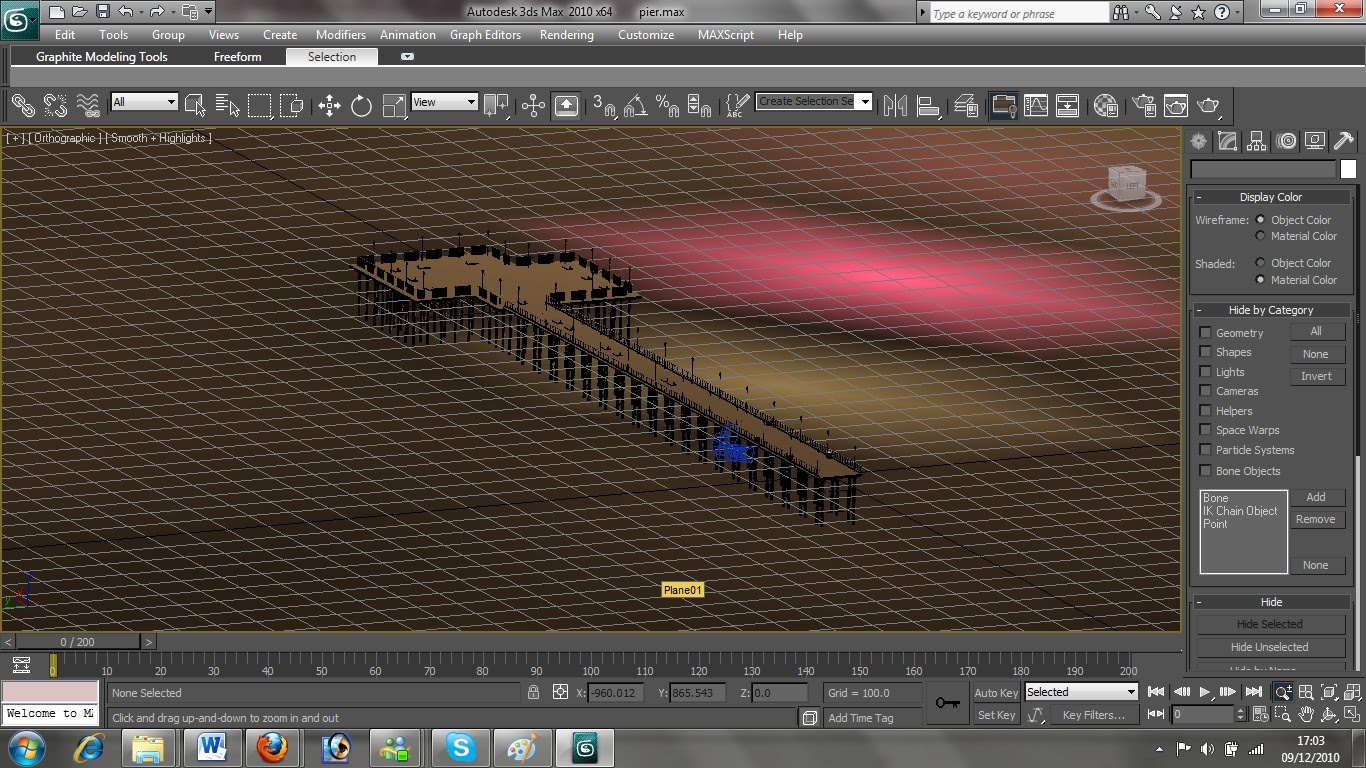
I could now create the water. I did this by creating a large plane and assigning a material to it. The material has a noise bump on it at the correct size to make it look like calm water. The water also has a reflection raytrace. This reflects surroundings to give a very realistic effect. The water is also slightly coloured to a brown/green colour which shows up in places of shadow. The water at the moment looks very blue, but this is because there is nothing for it to reflect as the sky is not in place.


You can see how the lighting is working on the water.


Now i need to create a sky. As the water is going to be reflecting the sky and all surrounding, It needs to be all over the top, like a real sky would be. To do this I created a cylinder big enough to cover the whole scene. In the drop down menu, in th editor I changed it to 'standard' which allows you see inside it in perspective mode. I then found an evening sky image and assigned it to the cylinder. Here is the complete scene.

Southend pier

Southend Pier is the longest pleasure pier in the world. This makes it unique to Essex and may entice people to come and visit.

I decided to model this from a few reference photos. I used this photo to give detail on the supports and cross members:


And this photo for the platform...

train and cameras in the station...

I decided to liven the scene up a bit by modeling a rough train. This train was set to be a through train, so it would just speed through the station, wobble the camera as it went. I didn't spend too much time on the train as I knew it would just be seen for a split second. I think this turned out ideal.

I pressed control + C to set the camera from the veiwport veiw. As the train rushes by it wobbles the camera. I did this using the autokey and in very short succesion, slightly rolling and panning the camera. I set the train to travel from just left of the scene to just right of the scene. I set the keyframes quite close so the train would travel at high speed between these points.

Here is the train half way through modelling...


The fourth omni light was also in position to light the facing side of the train.

This screenshot also shows the reflection raytrace in place on the train tracks.


Here is a final screenshot of the train and station taken from the video:

Chelmsford Train Station...

This was added into the animation to show that essex is set in an idela location. You have the beauty of the rural landscapes (which will be modelled), yet it is still close to London and other areas that can be reached by a short train journey. I decided to model Chelmsford train station...

I started by finding some reference images from as many angles as possible...


This also showed the colour scheme and materials that it is constructed out of which will be very usefull.

I started the modeling with boxes. I made he platforms first and dedicated one perspective veiwport to the final scene. This way i could work in all the others, but the final scene veiwport always stayed the same so I could see what it would look like at the end. I wanted the camera to be positioned looking over the track but still be focused on the other side where all the detail will be.

I used editable boxes as it was all very angular. The iron railings were created by creating one and copying it several times. I used a reflective raytrace on the windows and advertising signs.

Here is a final screen shot after adding a material to it.


I believe lighting plays a massive part to get it to look realistic alongside decent materials. As far as lighting goes, I used omni's I set up 4 different omnis which can be seen in this screenshot. That may seem a tad excessive, but I altered the intensity, colour and what is affected by their shadows to give the final outcome.


Omni number 1 is in place with the highest intensity. This is to give the impression of the sun coming from the back of the station as if it evening time.

This is slightly orange/yellow to give the evening sun colour.

The raytraced shadows are turned on and effect everything. Once i Had applied this alot of the main scene was in shadow.

I added omni number 2 and 3 to act as lights under the shelter. This lit everything up inside the station but was not quite as intense so it didn't wash everything out. These show the texture on the platform well.

The fourth omni was put in place to light up the train tracks and create realistic shadows.

I think the lighting turned out veyr well on this scene and it gives a great effect.

Adding windmill to a scene...

Now i began to think about where the windmill would be situated. I decided to place it in a field on a hill over looking more rolling fields. I tried to make it as realistic as possible.

I started by creating a flat box as the ground. I played around with the vertexes, pulling them up and down to create an un-uniform plane. The plane slopes away at the rear to give the effect of a hill.


I added an image to a plane for the background and positioned it realistically. I then went about adding a grass texture to the ground. I tried a few but as it was a large area or grass, the grass would require tiling and this looked awful. I decided to make a huge seemless texture on Adobe Photoshop. I adding some brown to it and leaves using a brush. This was than applied to the ground. I am pleased with how it turned out. I also added some foliage and made them irregular by playing around with the prune tool and adjuster size and rotational angle.

Here is the graas texture I created:


Adding a material to the windmill...

Now the model is complete I began to add a material to it by using the material ID's. This allows me to assign different materials to one object by selecting polygons. In the material editor I chose sub/divided object. I began to assign different materials. Here is it materialised...